



In the world of music production, one of the secrets to a signature sound lies in sample flipping. While many producers chop samples, top-tier producers utilize creative sampling techniques that result in truly original sounds.Sample chopping is the process of cutting a sample into smaller pieces, while sample flipping is the broader technique of taking a sample and manipulating it to create a new musical idea. In this blog, you’ll learn how to use Native Instruments 360 Plus products to transform your samples into inspiring sounds, resulting in truly unique elements for your next track or remix.
Jump to these sections:
Follow along with this tutorial and flip your own samples with a 360 Plus subscription.
Sample flipping techniques
Let’s explore techniques for sample flipping using Battery 4, Transient Master, Guitar Rig 7, Massive X, and Raum.
Chop a loop in Battery 4
Chopping a loop is still a useful technique to use in a music production workflow. Using Battery 4, you can manually define your own samples in Battery’s Sample Editor. Start by loading a loop into Battery 4. Drag any audio file from your computer’s file browser onto an empty cell in the Battery.Enter the Sample Editor by selecting the cell containing your sample and clicking the Editor tab at the bottom of the Battery window. The sample waveform will be displayed in the Waveform Control area. Adjust the sample start and end markers (labelled “S” and “E”) to play a small section of the sample.

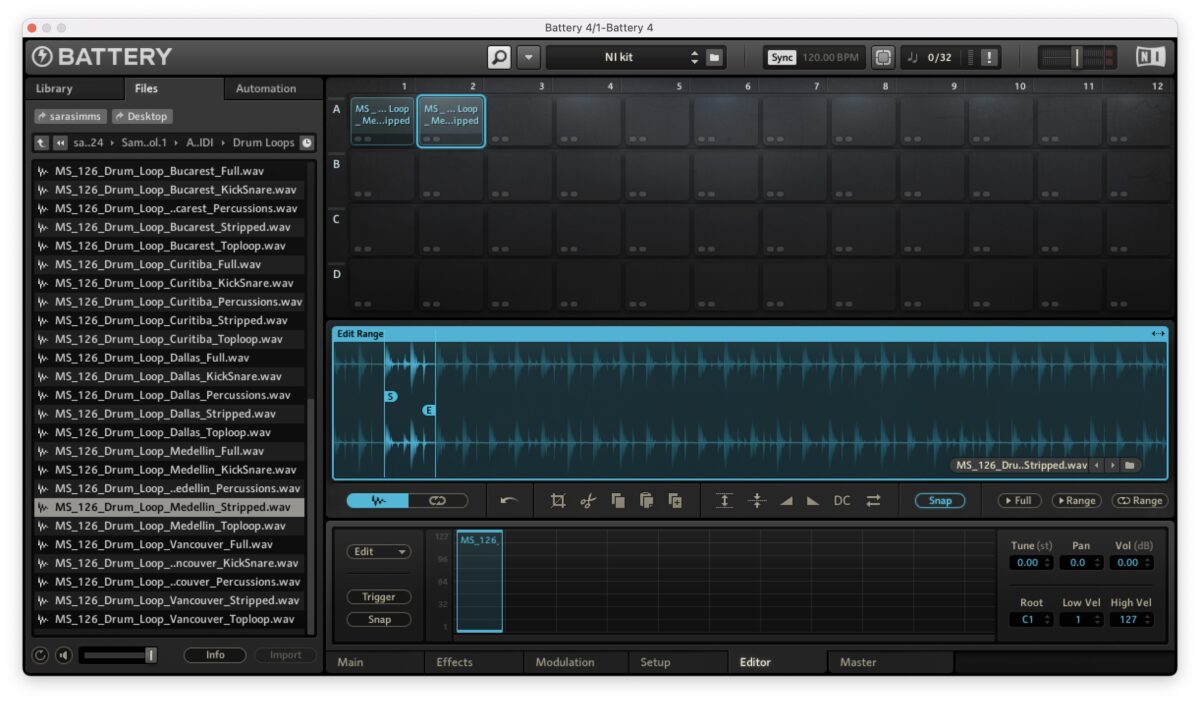
Copy the first cell to a new pad and adjust the start point and end markers of the loop to play another section in the second cell.
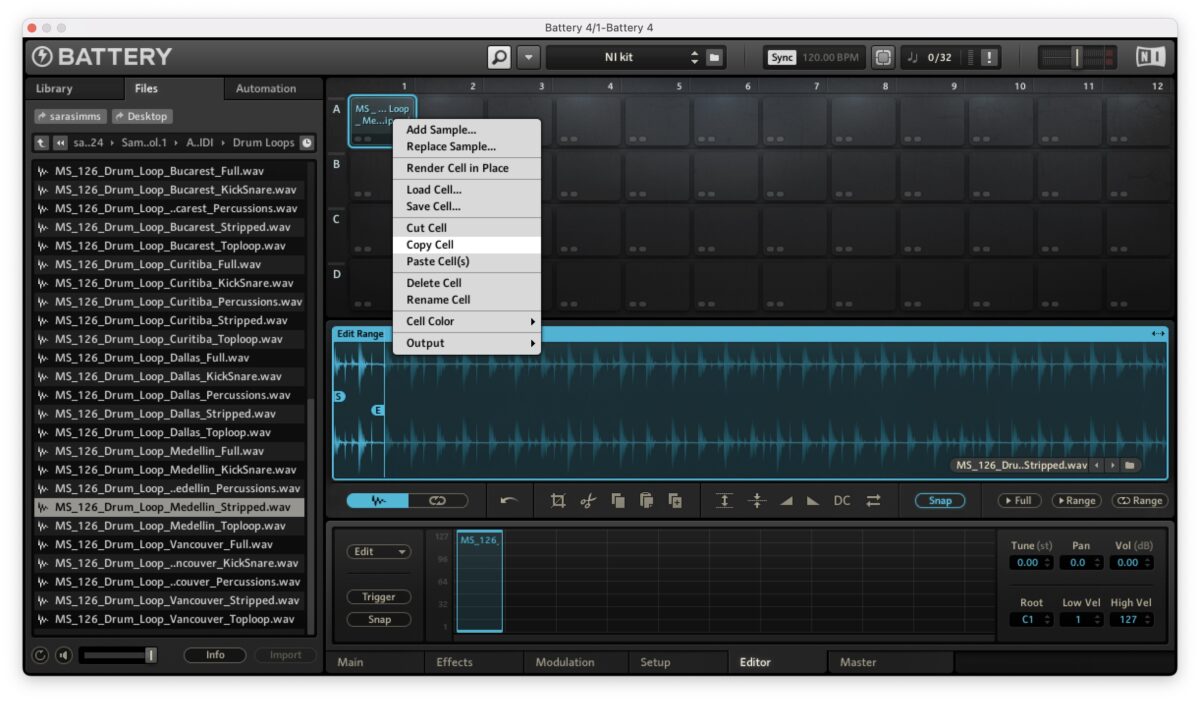
Repeat the process of copying the loop, pasting it to a new cell, and adjusting the section of the loop that plays.
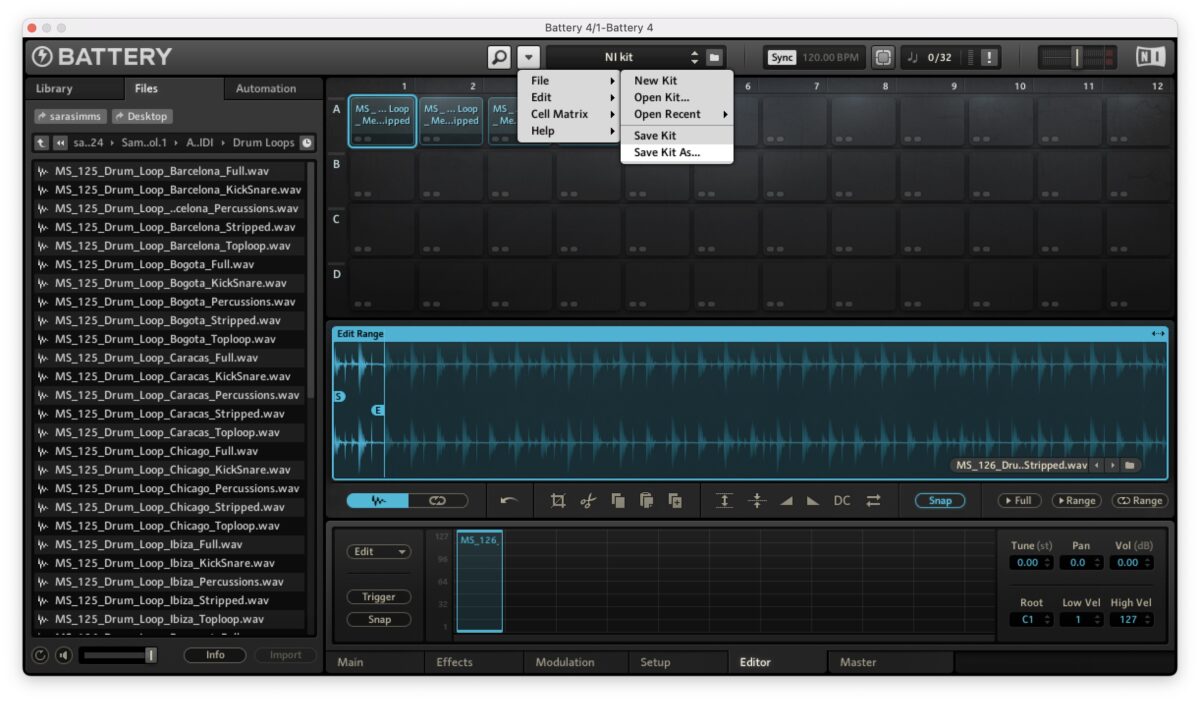
Save your drum kit in Battery by clicking File / Save Kit as and naming your kit. Next, use a MIDI controller to record a MIDI pattern with your drum kit. Play the corresponding pads to the sections of the samples you chopped to play the samples back in a new way. You can record your loop, bounce it out of your DAW, and use it in your session.
Shape samples with Transient Master
Transient Master is a dynamics processor that can be used to shape the initial attack and sustain of audio signals. Use Transient Master to add punch to samples, or soften the sustain to shorten the decay or tail of the sound to make the overall rhythm tighter.Start with a kick drum sample, like one from a sample pack.
On Transient Master, turn the Attack knob to the right between 20% and 30% to boost the transient – the initial onset of the sound.
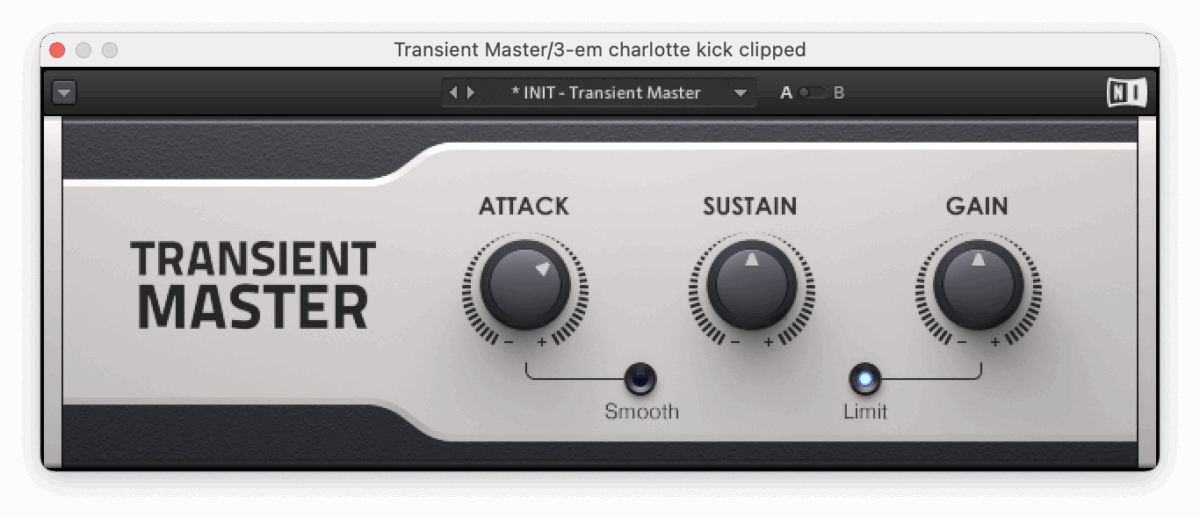
For a more aggressive sound, increase the Attack to 70%.
Try lowering the Sustain to reduce the level of the end of the sound. This reshapes the sample and makes room for the transient to cut through.
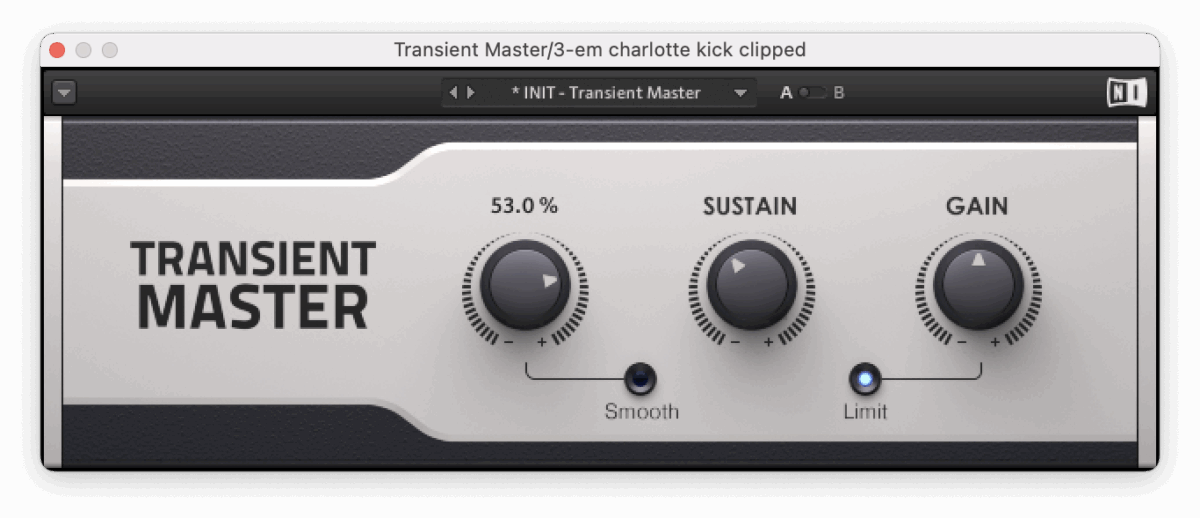
Try lowering the sustain on individual samples or a top loop. Gradually bring the sustain down, removing resonance, room sound, or long reverb.
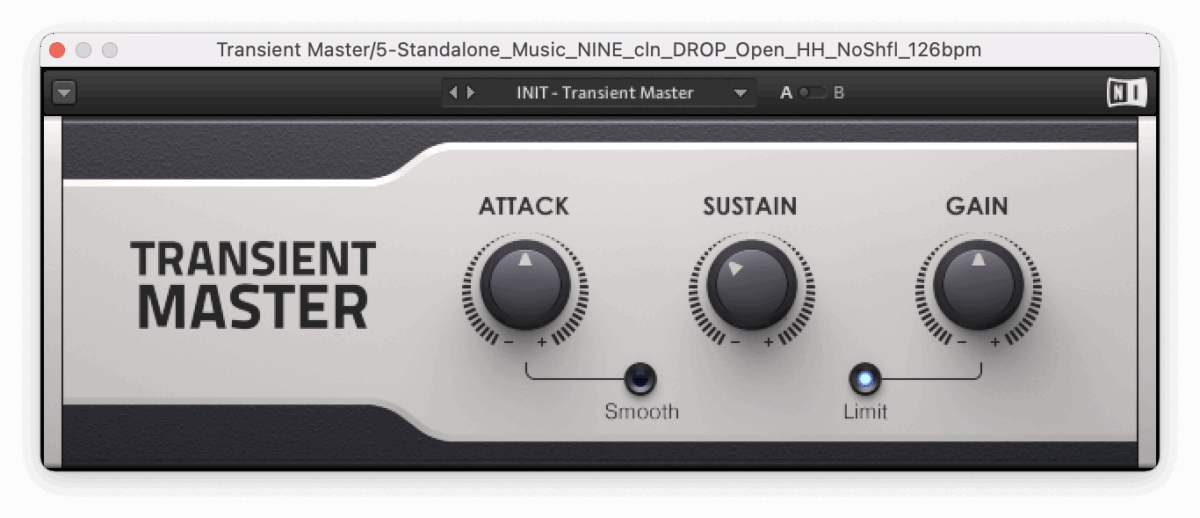
Add in a kick drum with a distinct transient, and listen to how the groove sounds tighter once both sounds have been reshaped with Transient Master.
Add effects with Guitar Rig 7
To add creative effects to samples, look no further than Guitar Rig 7. While Guitar Rig is commonly used for processing guitars, it can be used to add all sorts of wild effects to any audio sample.
Try using Guitar Rig 7 to process vocal samples. Start with a dry vocal sample.

Create a bus, and add Guitar Rig to it. Adding Guitar Rig on the bus channel will give you more control over how much of the vocal is sent to the effect. In the FX Types section, choose Distortion and Bitcrusher. Choose one of the many amazing sounds, and turn up the Send on the vocal channel to send it to the Guitar Rig 7 bus.
Next, let’s explore the Modulation section of Guitar Rig. Choose a simple dry sample, like a synth loop.
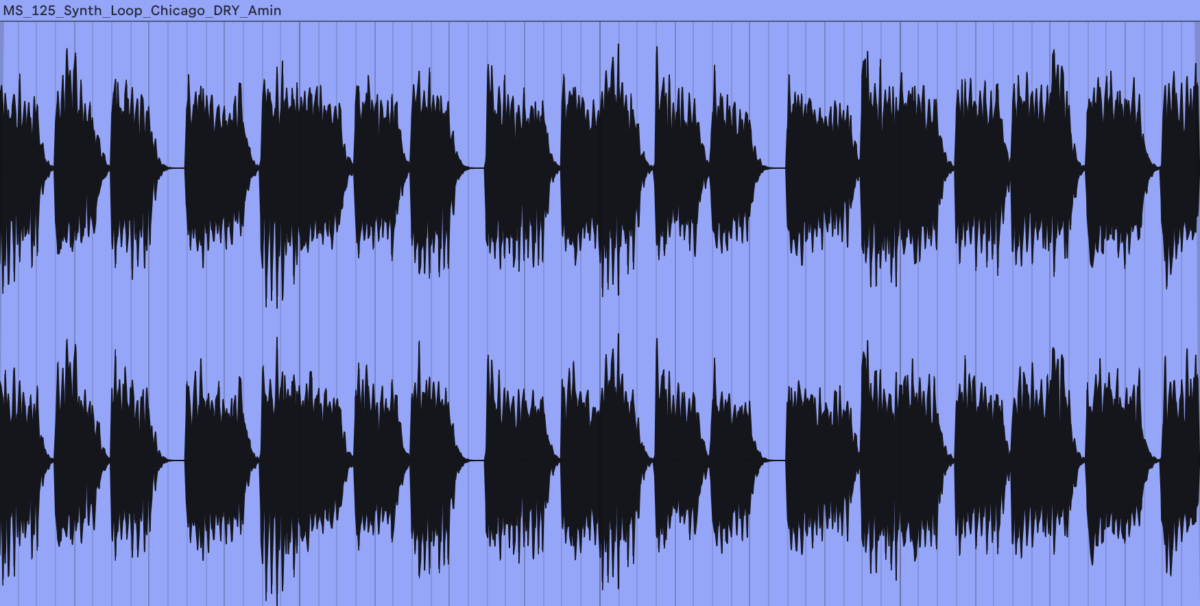
Load Guitar Rig 7 onto the audio track, and in the FX Types section, navigate to Modulation, and then Chorus. Start by scrolling through the presets available, and try out the Beautiful Vintage Vibrato, or your favourite preset on the track. Each preset consists of an effect chain that you can use as is, or tweak to customize and save it.
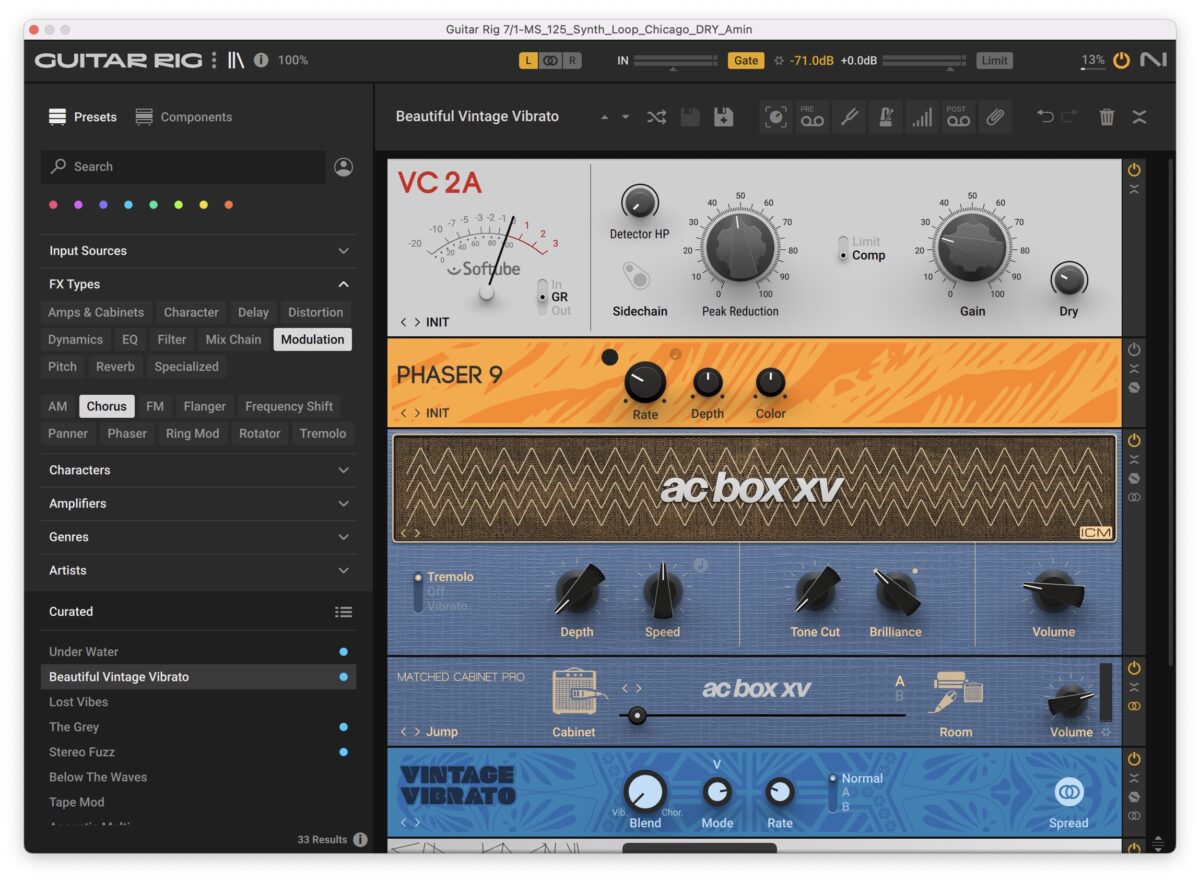
To print the effect to the audio, bounce out the synth sound with the Chorus on it and use it in your next track.
Make a layered sub bass with Massive X
You can import a sample into Massive X’s noise oscillator to use its filters, modulators, and effects for a unique sound design processing experience. Let’s create a sub bass sound using a processed sine wave sample, and then layer it with a sub bass audio sample for a thick-sounding low-end foundation.Import a sample into Massive X’s noise oscillator by clicking the drop-down menu next to the Massive X logo in the header section and clicking the Show User Content Folder. Select Show User Content Folder, navigate to the folder, and copy a Sine wave sample file into it.
Return to Massive X and, from the same settings menu, select Rescan Content. Your sample will now be available in the Noise player’s menu under the “User” category.
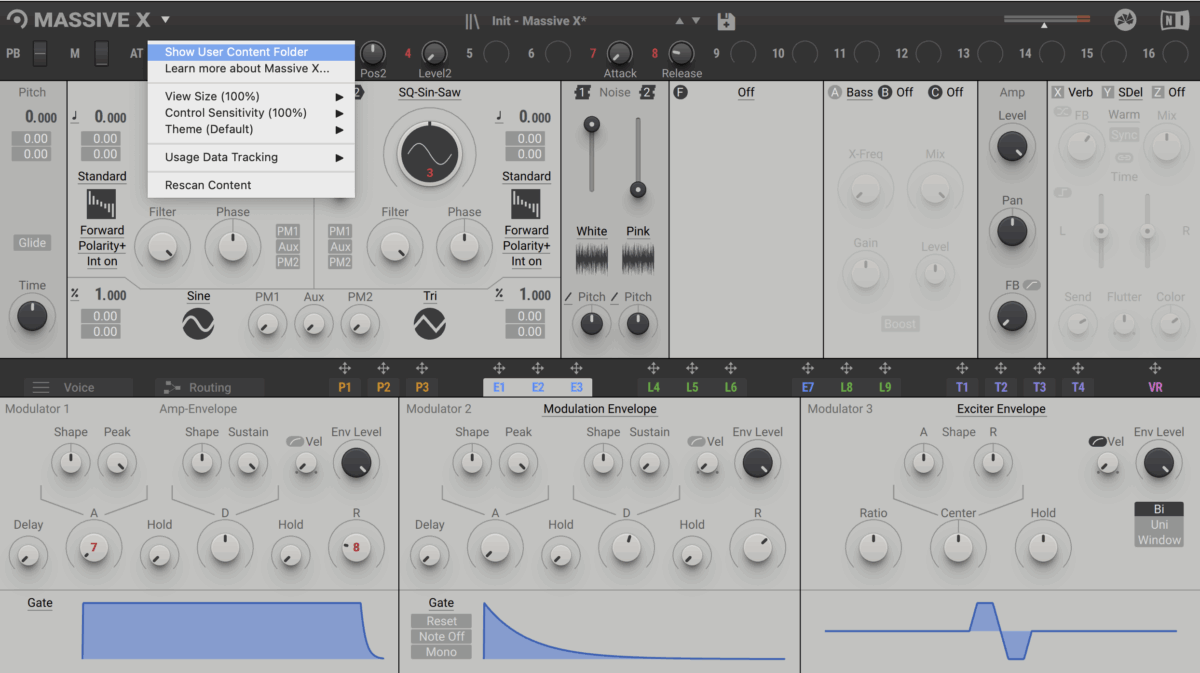
In the Noisetable section, click on Noisetable 1, User, and select your sample. Adjust the volume of the noise that’s mixed by adjusting the level slider on Noisetable 1.

Turn on the Filter section (located to the right of Noise) and select the Asimov filter, a low-pass filter. Filter out all of the low end below 200 Hz.
In the Stereo Effects sections (labelled with X, Y, and Z), turn on X and select Reverb. Turn the Size up to 70%. Lastly, shape the sine wave layer using Massive X’s modulation section, slightly increasing the Decay to around 4.25 ms, and Release to 10 s.

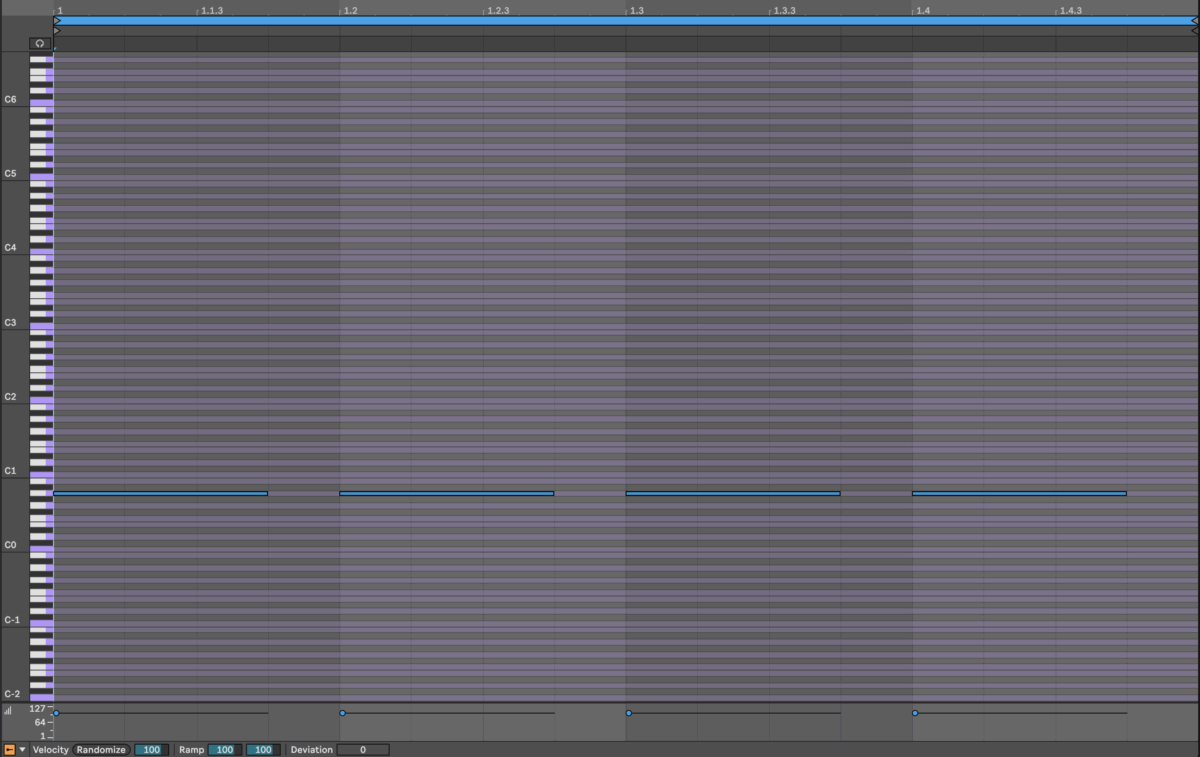
Create a blank MIDI clip, and add a MIDI note for each sub bass note. Be sure to note the original key of your sub bass sample.
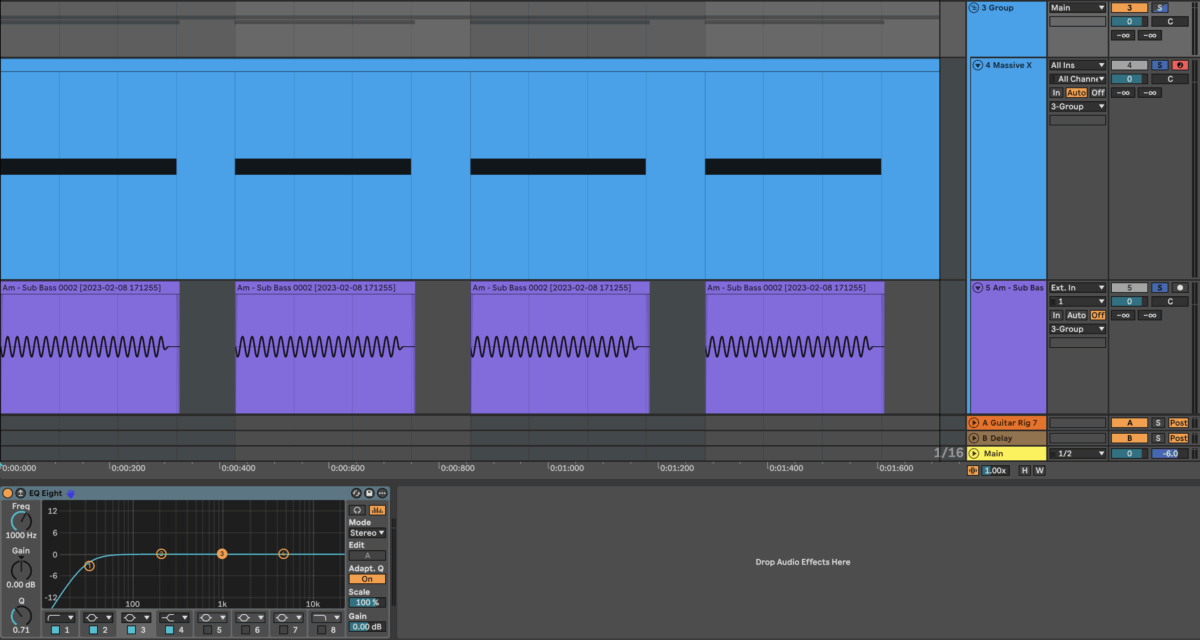
Create an audio track, and add a sub bass sample in the same key as your MIDI sine wave layer. Adjust the two samples so that they start and end at the same time. Group the two layers together and equalize them, using a low-pass filter to cut off all the frequencies above 200 Hz.
You can bounce out the combined bass track to a single audio file, and save this sample to use as your new go-to low end sample.
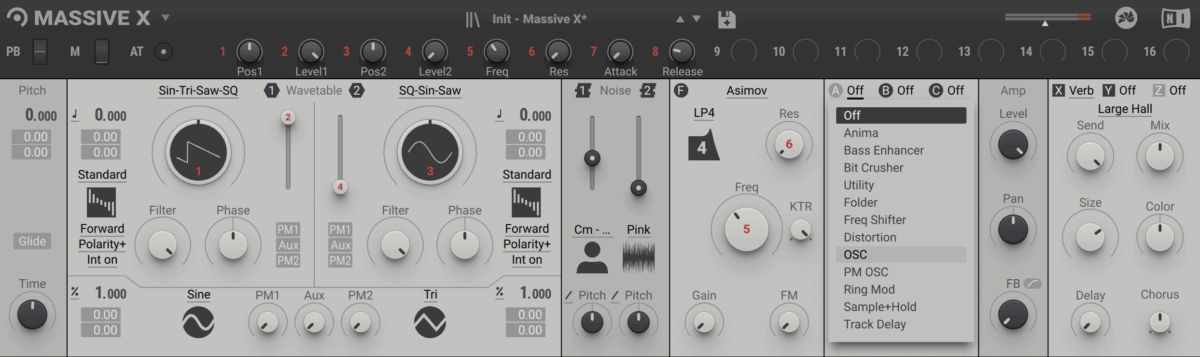
As an alternative to this method, Massive X features insert oscillators that can be used to add a sub bass. To add a sine wave, navigate to the Insert FX slot 1, select Insert Osc, and choose sine wave.
Create ambience using Raum
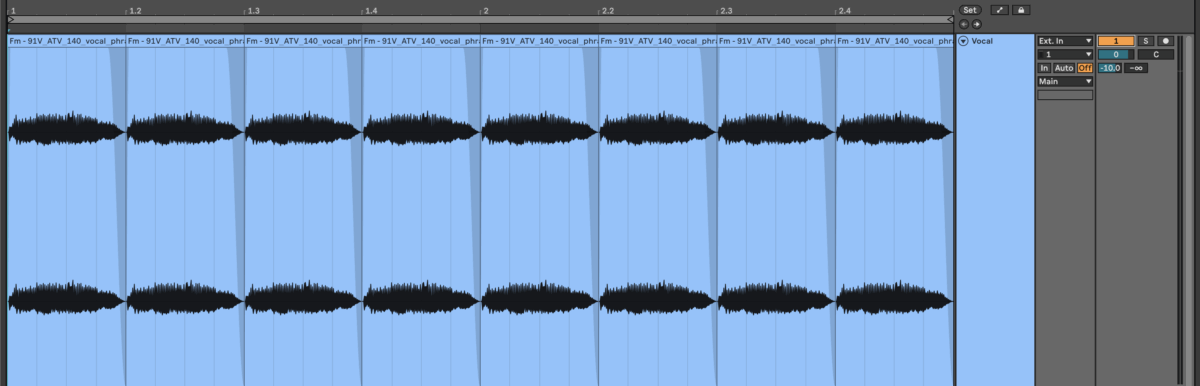
Start with a sample in the key of your track. This could be a vocal loop, a synth part, or a percussion loop. If you’re using a vocal part, cut the audio down to your favourite section and copy and paste this section, repeating it in a consistent pattern for an eight-bar loop.
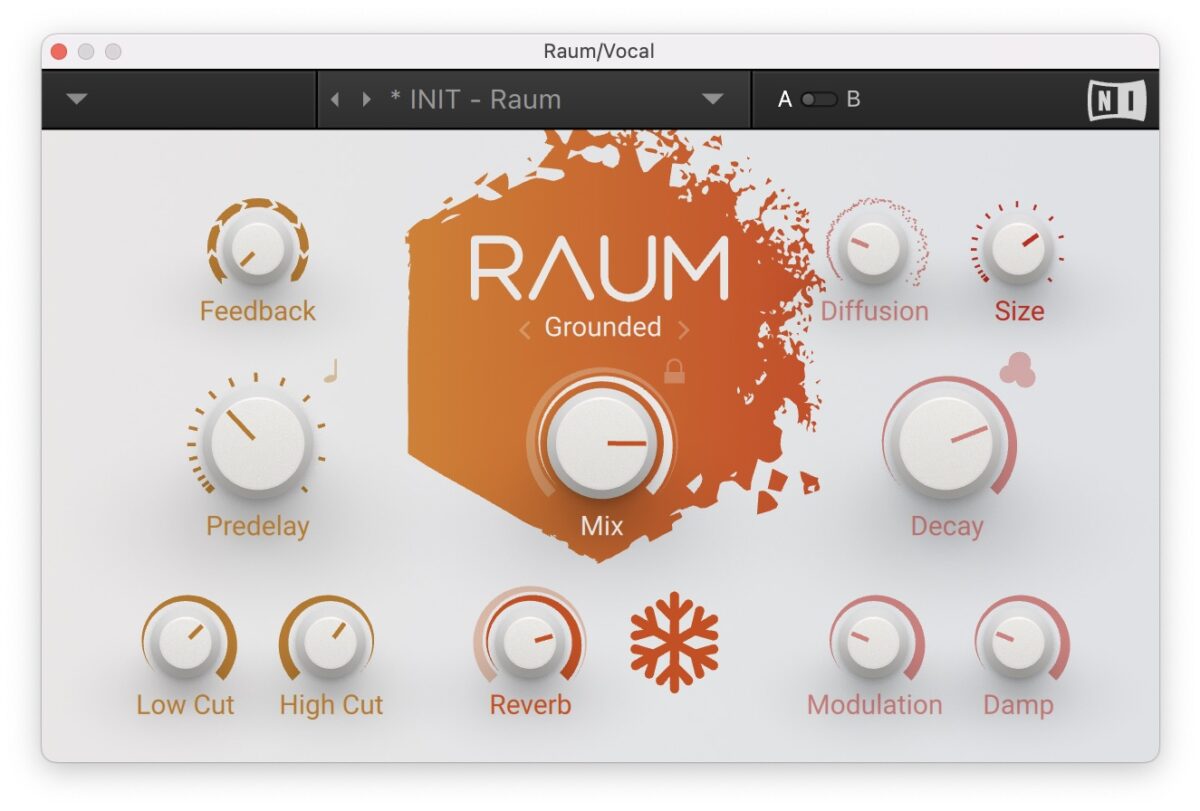
Add Raum onto the audio track, and choose either Grounded or Airy mode, as these both have a Freeze function. Set the Predelay to around 37 ms. Increase the Size and Decay time, and increase the Mix and Reverb amount. Press the Snowflake button to freeze Raum. Lastly, adjust the Low Cut filter to taste (the one in this example is -16 dB) and the High Cut filter to around 10 kHz.
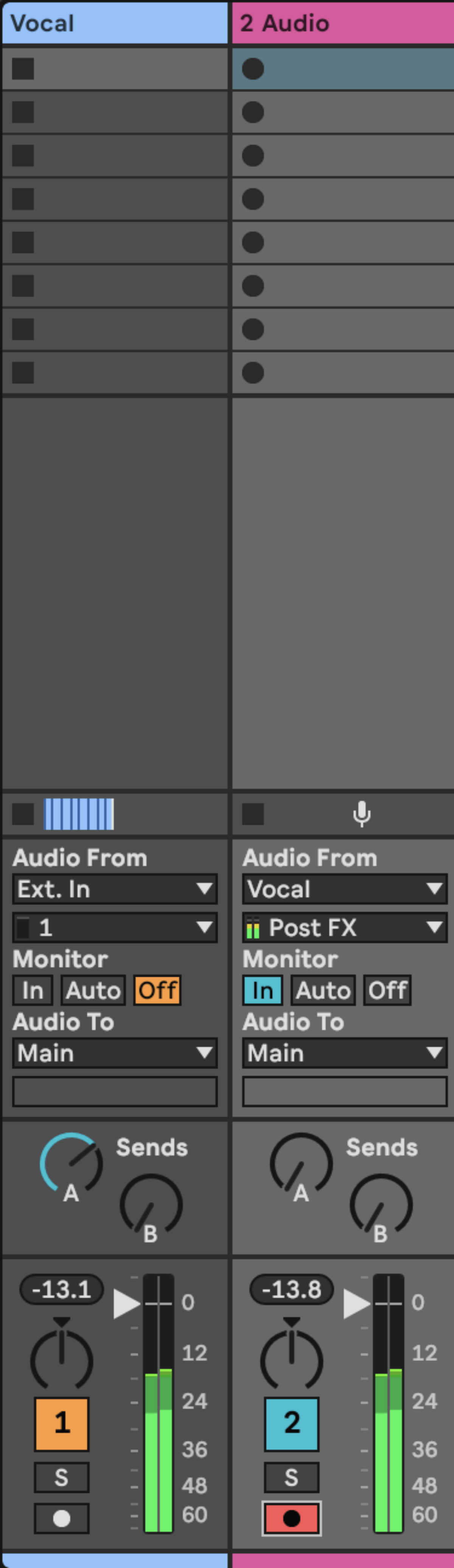
Create a new audio track, and route the audio from the track with Raum to the new track. Record the audio from the track with Raum to the new track.
To further shape the ambience, add an equalizer to the track, and use a low and high-pass filter to cut the low and high frequencies. Enhance the stereo width of the ambience by adding a stereo widening plugin like iZotope Imager. Here’s the final ambience sound.
Flip your own samples today
Drawing inspiration from top-tier producers, the key to truly unique sound design lies in moving beyond sample chopping. By leveraging the advanced capabilities of the Native Instruments 360 Plus suite, you can employ creative sample flipping techniques to really transform your audio sources.
These methods using NI tools allow for the creation of original sonic elements, effectively turning samples into the distinctive sounds for professional-level track production. It’s time to start transforming samples. Dive into 360 Plus tools today and start forging your own original sound.
The post How to flip samples like the top 1% of producers first appeared on Native Instruments Blog.